
Are you tired of wasting hours drafting content and manually formatting slides for your next big meeting? Imagine a world where you can produce polished, professional AI PowerPoint presentations in just a few clicks. That world is here, and it is powered by artificial intelligence.
In this detailed guide, we will explore how to utilize cutting-edge AI tools to craft impressive presentations that will wow your stakeholders and clients. Say goodbye to late nights and dull, text-heavy decks. Let’s dive into a smarter, faster way to present your ideas.

Why AI Is Revolutionizing Slide Creation
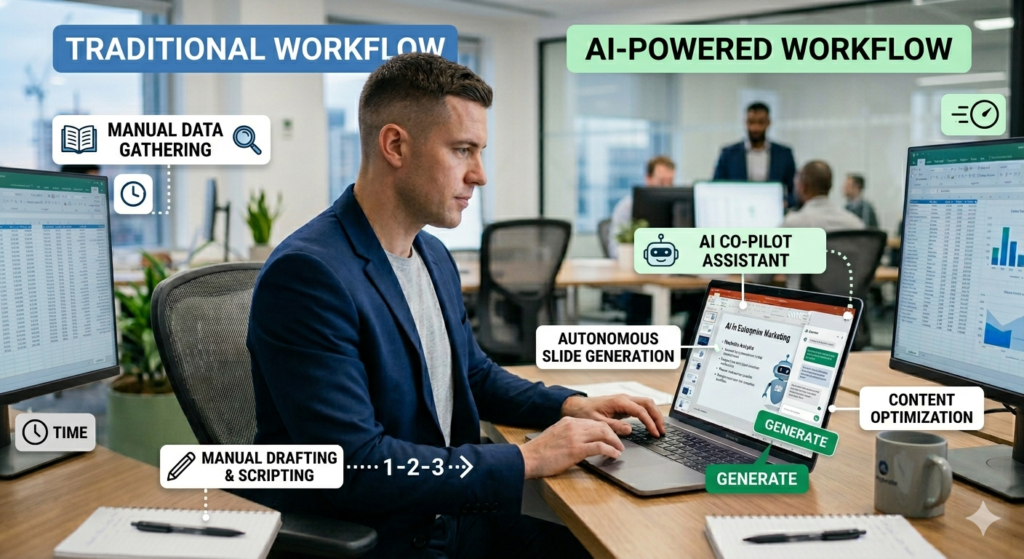
The traditional process of building a deck is often tedious. You are juggling copywriting, design alignment, image sourcing, and formatting simultaneously. AI presentation generators, such as Gamma AI, streamline this workflow by automating the heavy lifting while preserving high standards of quality.
Key benefits of using AI for your decks include:
- Speed: Generate full decks in minutes, not days.
- Content Generation: Let AI draft the text for you based on simple prompts.
- Design Automation: Access professional layouts without needing a graphic designer.
- Easy Customization: Tweak any element instantly to match your brand.
- Consistency: Ensure a uniform look across all slides effortlessly.
For more insights on presentation design, check out Adobe’s guide to effective presentations or explore Microsoft’s PowerPoint resources.
Introduction to Gamma AI: The Smart Choice for AI PowerPoint Presentations
Gamma AI is a standout tool in the market, designed to turn your raw thoughts or rough outlines into sleek, ready-to-use presentations. Whether you are a corporate executive, a student, or a freelancer, this tool democratizes design, making it easy for anyone to produce professional results.
If you’re interested in learning more about AI tools, you might also want to explore our guide to AI writing assistants or discover the best AI image generators.
Step 1: Account Creation
Getting started is quick and painless. Head over to the Gamma AI website and click on the “Sign Up for Free” button. You can easily register using your Google account to save time. After logging in, set up your workspace, and you are ready to go.
The platform provides a generous free plan that includes 400 credits. Since creating a standard presentation usually consumes about 40 credits, you have plenty of room to experiment and produce several decks before needing to upgrade.

Three Methods to Build Your AI PowerPoint Presentation
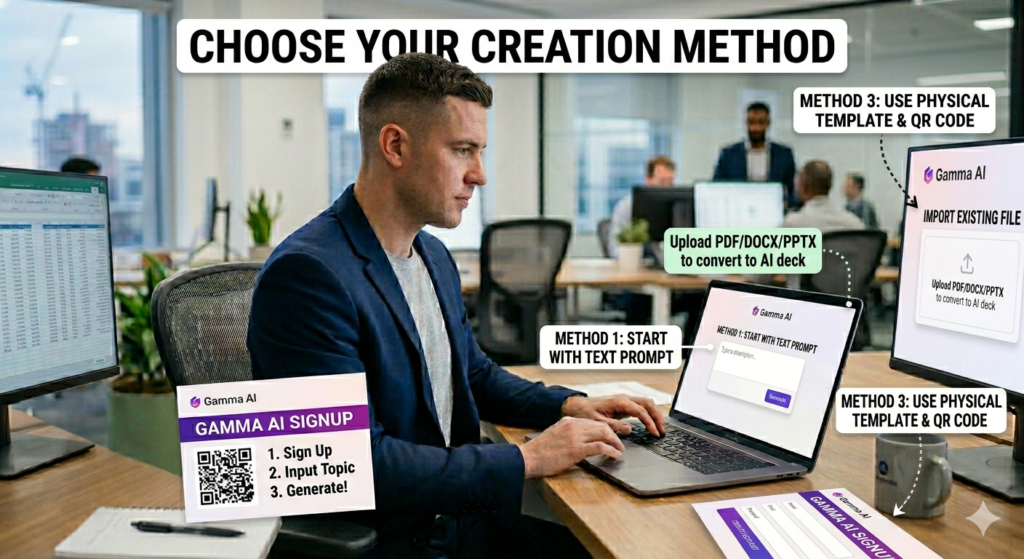
Gamma AI offers flexibility with three distinct ways to start your project:
1. Text-to-Presentation Method
If you have existing notes or a rough draft, this method is ideal. Paste your text, and the AI will structure it into slides automatically.
2. Prompt-Based Generation
Don’t have content ready? No problem. Type a single sentence describing your topic, and the AI will write the content and build the entire deck for you.
3. File Import Method
Have a Word document or an existing PDF? Upload it, and the tool will convert and enhance it into a dynamic presentation.
Select the option that best matches your current resources. For more tips on content creation, visit HubSpot’s content marketing resources.
Step-by-Step Tutorial: Building Your First AI PowerPoint Presentation
Customizing Your Settings
After selecting your creation method and inputting your text, you will need to adjust the settings to get the best result.
Content Mode Options:
- Generate: Best for turning rough notes into full content.
- Condense: Perfect for shortening long documents.
- Preserve: Use this if you want to keep your original text but change the format.
Content Detail Level: Choose between Brief (bullet points), Medium (concise summaries), or Detailed (comprehensive explanations) to suit your audience’s preference.
Tailoring for Your Audience
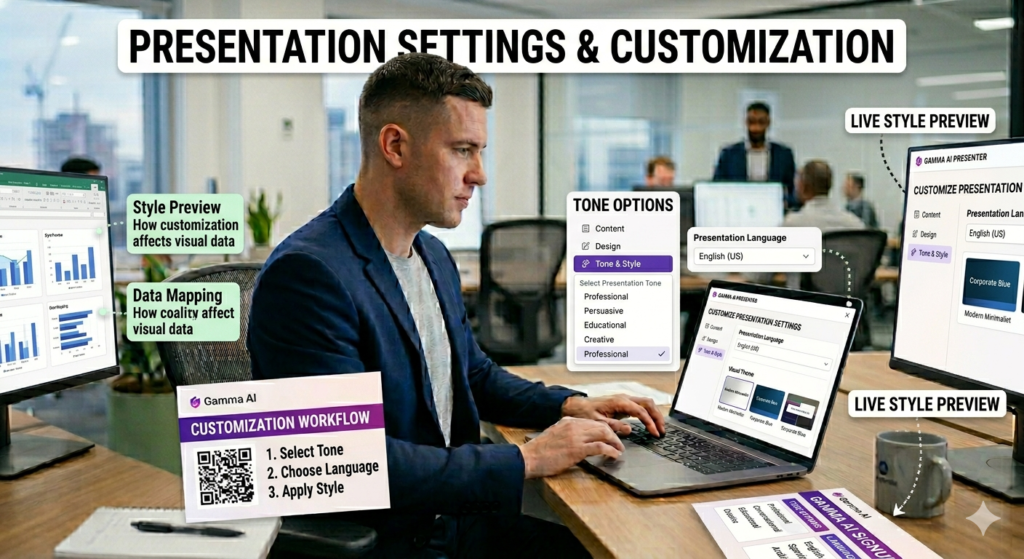
Gamma AI allows you to fine-tune several parameters:
- Audience: Specify who will be watching (e.g., executives, students).
- Tone: Set the vibe (e.g., professional, casual, persuasive).
- Language: Select from over 20 different languages.
- Visuals: Choose between searching the web for images or generating unique AI art.
- Slide Count: Select the number of slides (up to 9 on the free tier).
For additional guidance on audience analysis, check out MindTools’ presentation skills guide.
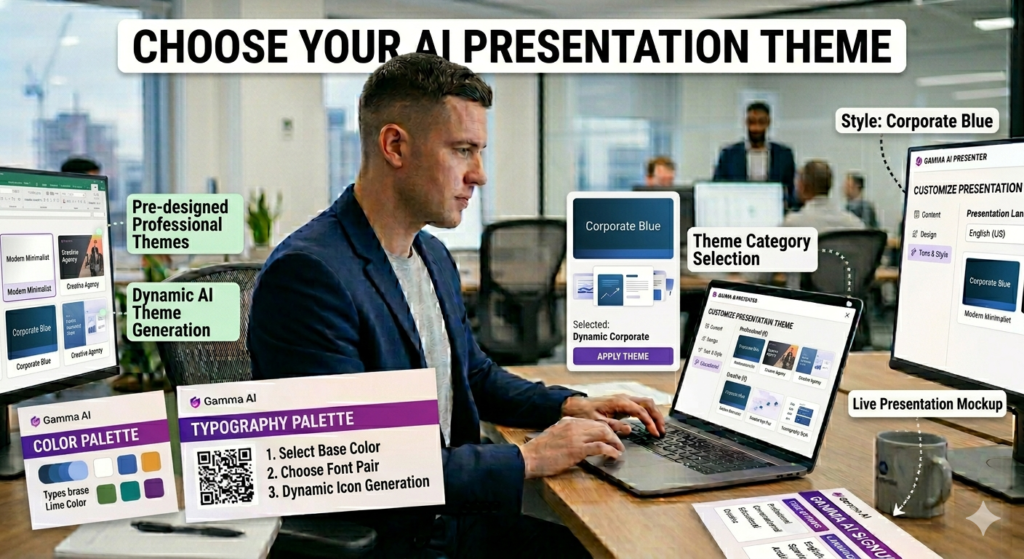
Picking a Theme for Your AI PowerPoint Presentation
Browse through the library of aesthetic themes. Pick one that aligns with your brand colors or the mood of your topic. The AI will apply this theme uniformly, ensuring your deck looks cohesive.
Refining and Polishing Your AI PowerPoint Presentation
Editing Text
The editing interface is user-friendly. Click on any text box to modify the copy. You can rewrite sentences or adjust headings to better fit your narrative while keeping the AI-generated structure.
Upgrading Visuals
Although the tool adds images automatically, you might prefer specific graphics. Replacing them is simple:
- Select the image you want to change.
- Click to remove it.
- Upload a file from your device or search for a new one within the tool.
Using AI Image Generators
For truly custom visuals, you can use external AI image generators like GravityRight. These tools allow you to create specific scenes that aren’t available in standard stock libraries.
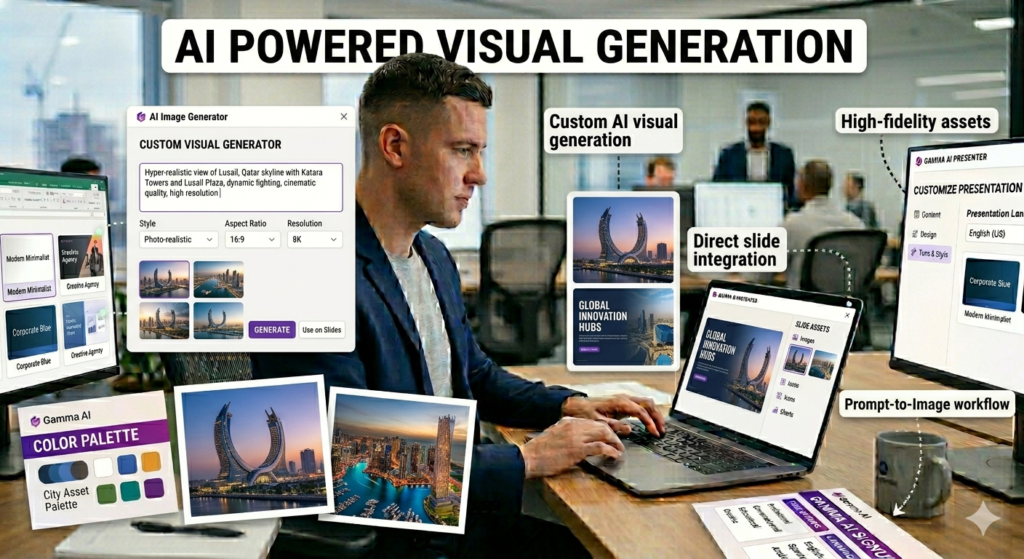
Describe your desired image, choose the style (e.g., realistic, artistic), and generate. Once downloaded, simply upload it to your Gamma AI presentation for a unique touch.
Advanced Editing Features for Professional Results
Smart Content Tools
Gamma AI includes built-in AI editors to help you perfect your text:
- Shorten: Condenses wordy text for cleaner slides.
- Lengthen: Adds more detail if a slide feels too sparse.
- Rewrite: Improves the flow and clarity of your writing.
These tools use a small amount of credits but are invaluable for quick adjustments.
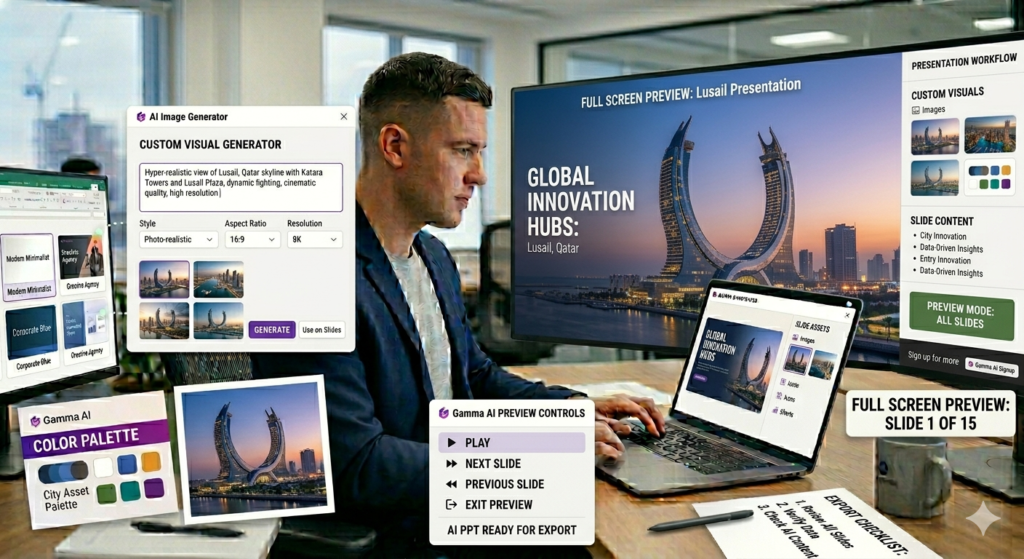
Final Preview
Always use the “Full Screen” preview mode before finalizing. This allows you to:
- Check the visual flow between slides.
- Ensure all text is legible.
- Verify that images are high-resolution and relevant.
If you need help with website integration, learn about embedding presentations on WordPress or explore our digital marketing guides.
Exporting Your AI PowerPoint Presentation
When you are satisfied with the result, exporting is straightforward:
- Click the “Share” or “Export” button.
- Select your preferred format: PDF (for sharing) or PowerPoint (for further editing).
- Download the file to your device.
The PowerPoint export is particularly useful if you need to make final tweaks in Microsoft Office or Google Slides.

Pro Tips for Better AI PowerPoint Presentation Results
- Clear Input: The more specific your initial notes or prompts, the better the output.
- Human Touch: Always review the AI’s work to ensure accuracy and tone.
- Visual Balance: Use custom images to make your deck stand out from standard templates.
- Conciseness: Stick to the “Medium” length setting for the best balance of information and readability.
- Review: Never skip the preview step.
For more productivity tips, visit our blog’s productivity section or check out Harvard Business Review’s guide to presentations.
Conclusion: Master the AI PowerPoint Presentation Workflow
Creating professional presentations is no longer a headache. With AI tools like Gamma AI, you can transform a simple idea into a visually stunning deck in moments. By combining automated content generation with smart design features, you can focus on your message rather than the mechanics of slide creation.
Give this workflow a try on your next project and see how much time you can save. Your audience will appreciate the polished result, and you will love the efficiency. The era of AI-assisted design is here—embrace it to elevate your work.
Ready to get started? Sign up for Gamma AI today and create your first AI PowerPoint presentation in minutes!
Leave a Reply