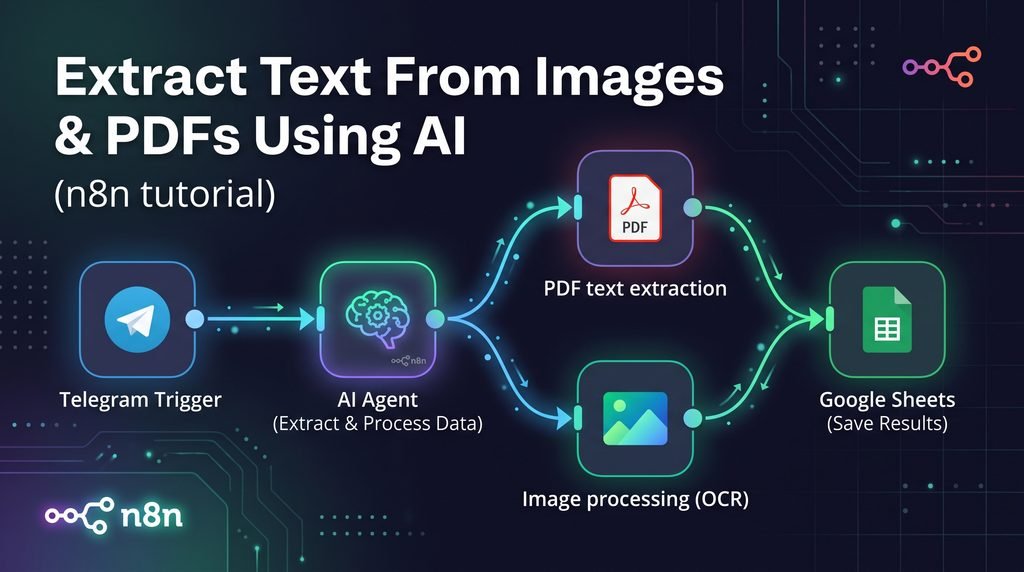
Automating document processing just got significantly easier with the power of workflow automation. In this comprehensive guide, you’ll learn how to Extract Text From Images & PDFs Using AI (n8n tutorial) to build a intelligent agent that processes Telegram messages containing invoices and receipts, then automatically populates structured data into Google Sheets. Whether you’re managing business expenses, streamlining accounting workflows, or building client automation solutions, this n8n-powered system delivers enterprise-grade document extraction without complex coding.
What Is This AI-Powered Document Extraction Workflow?
This automation solution leverages n8n’s visual workflow builder combined with OpenAI’s intelligence to create a smart document processor. The system receives messages via Telegram containing either PDF invoices or image receipts, intelligently routes them to the appropriate processing tool, extracts line-item data using OCR technology, and outputs structured information directly to Google Sheets.
Key benefits include:
- Automatic file type detection: The AI agent determines whether to process an image or PDF
- Flexible input sources: Works with Telegram, WhatsApp, Twilio, or other messaging platforms
- Structured output: Converts unstructured document text into organized JSON data
- Scalable architecture: Add new document types or destinations without rebuilding the core workflow
For more on workflow automation fundamentals, check out [Internal Link: n8n Automation Guides – https://aitoolsupdates.net/n8n-automation].
Setting Up Your n8n AI Agent for Document Processing
Configuring the Telegram Trigger
Start by creating a new workflow in n8n and adding a Telegram trigger node. Select the “On Message” event to activate the workflow whenever your bot receives content. You’ll need to generate an access token via BotFather in Telegram:
- Search for @BotFather in Telegram
- Send the
/newbotcommand - Follow prompts to name your bot and create a username
- Copy the generated access token into n8n’s credentials field
Test the connection by sending a message to your new bot. You should see the message payload appear in n8n’s execution panel. For detailed setup instructions, refer to the official [Link: n8n Telegram Integration Docs – https://docs.n8n.io/integrations/builtin/trigger-nodes/n8n-nodes-base.telegram/].
Building the Intelligent Routing Agent
Add an AI Agent node to evaluate incoming messages and select the appropriate processing tool. Configure the chat model (OpenAI GPT-4o-mini recommended for cost efficiency) and set up window buffer memory to maintain conversation context. Crucially, update the chat input mapping to pull from Telegram’s “caption” field rather than n8n’s default messaging format.
The system prompt should instruct the agent to:
- Call the document processing tool for PDF files
- Call the image processing tool for photo receipts
- Execute tools immediately without verification prompts
- Pass file IDs directly to sub-workflows
Extract Text From Images & PDFs Using AI (n8n tutorial): PDF Processing Sub-Workflow
OCR Extraction and Text Conversion
Create a secondary workflow triggered by the main AI agent. Use the “Extract from PDF” node to convert document content into raw text. This transforms scanned invoices or digital PDFs into machine-readable format, though the output remains unstructured.
Structuring Data with OpenAI and JSON
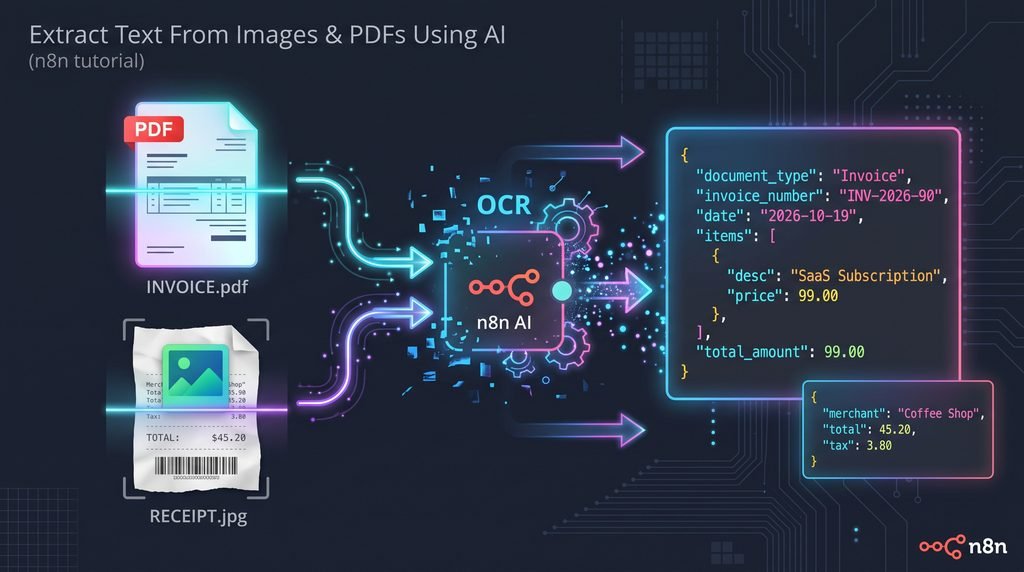
Pass the extracted text to an OpenAI node with a three-message configuration:
- System message: Define the AI’s role as a document data extraction specialist
- User message: Provide the raw text from the PDF
- Assistant message: Specify the desired JSON output schema
Use ChatGPT to generate a sample JSON template for invoice data including fields like invoice_number, line_items, total_amount, and due_date. Ensure the OpenAI node outputs actual JSON objects—not text representations—to maintain compatibility with downstream n8n nodes.
Learn more about AI-powered data tools at [Internal Link: AI OCR Tools – https://aitoolsupdates.net/ai-ocr-tools].
Image Processing: Handling Receipts and Photo Documents
Overcoming MIME Type Challenges
Image processing follows a similar architecture but requires an additional step to handle Telegram’s file format quirks. Telegram often delivers images with “application/octet-stream” MIME types that OpenAI’s vision models reject. The workaround: insert an “Edit Image” node between the file download and analysis steps.
Configure the Edit Image node to apply a transparent overlay—this re-encodes the file into a standard JPEG/PNG format without altering visual content. Now the OpenAI “Analyze Image” node can successfully extract text from receipts, photos, or screenshots.
Prompt Engineering for Accurate Extraction
Use a targeted prompt like: “Extract all line items, prices, merchant name, and total amount from this receipt image. Return structured JSON matching the invoice schema.” The AI will identify visual text elements and map them to your predefined fields, handling varied receipt layouts with remarkable consistency.
Connecting to Google Sheets for Automated Data Entry
Using Split Out for Line-Item Granularity
Add a “Split Out” node targeting the line_items array in your JSON output. This ensures each product or service on an invoice creates a separate row in your spreadsheet—critical for accurate expense tracking and reporting.
Mapping Fields to Spreadsheet Columns
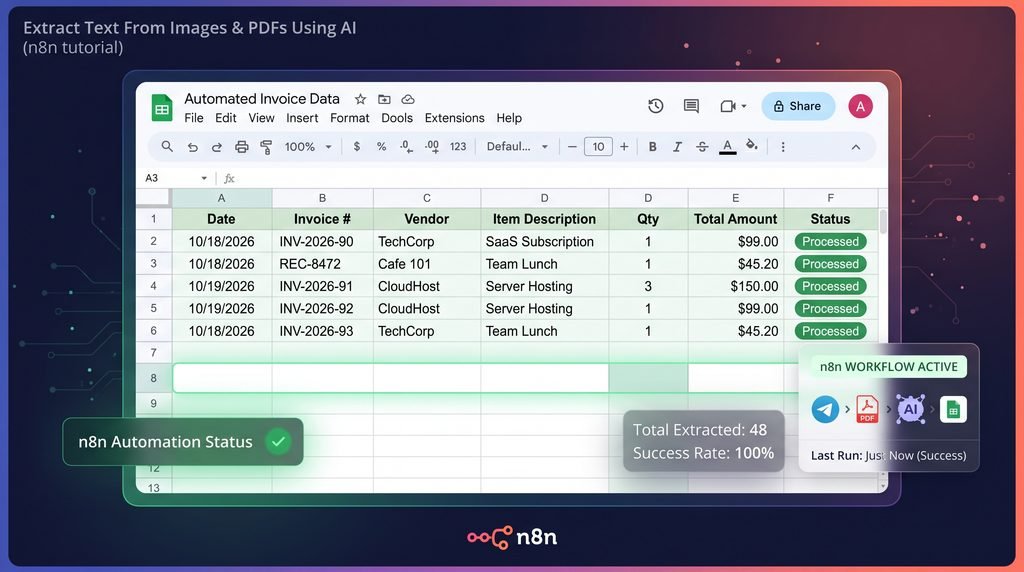
Configure the Google Sheets “Append” node with:
- Your connected account credentials
- Target spreadsheet and worksheet selection
- Field mappings: JSON keys to column headers (e.g.,
line_items.name→ “Description”,line_items.price→ “Amount”)
Test the full workflow by sending a sample PDF and image to your Telegram bot. Verify that data appears correctly in Google Sheets with proper formatting and no missing fields.
Testing and Troubleshooting Your Workflow
Run end-to-end tests with real-world documents to validate accuracy. Common issues include:
- API key errors: Regenerate OpenAI credentials at [Link: OpenAI Platform – https://platform.openai.com/docs]
- File ID mismatches: Ensure you’re pulling the correct Telegram file identifier
- JSON parsing failures: Validate output schema matches expected structure
Pin sample execution data during development to avoid repeatedly sending test messages via Telegram.
Scaling Your Document Automation Strategy
Once your core workflow functions reliably, expand its capabilities:
- Add tools for Word documents, emails, or cloud storage files
- Route processed data to QuickBooks, Xero, or custom databases
- Implement approval workflows before data entry
- Add error handling and notification systems
This Extract Text From Images & PDFs Using AI (n8n tutorial) framework provides a foundation for sophisticated document intelligence. By combining n8n’s flexibility with AI-powered extraction, you eliminate manual data entry while maintaining accuracy and auditability.
Ready to implement this solution? Letting you deploy this automation in minutes rather than hours. Start transforming your document workflows today with intelligent, scalable AI integration.
Leave a Reply