
Introduction
Notice something new appearing across your digital environment? That unfamiliar icon has made its way onto Windows taskbars, integrated into Office suite programs including Word, PowerPoint, and Teams, appeared in Edge, and even found its way onto contemporary keyboard designs. What purpose does this innovation serve, and could it transform how you work?
Microsoft’s Copilot introduces an intelligent approach to workplace productivity, providing AI-powered assistance that helps you complete work more efficiently and effectively. From composing messages and developing slide decks to interpreting datasets and handling correspondence, this tool optimizes your processes and enhances results. Throughout this detailed resource, we’ll examine Microsoft Copilot’s capabilities and demonstrate methods to harness its full potential.

Understanding Microsoft Copilot
Think of Microsoft Copilot as your intelligent workplace companion, specifically designed to enhance performance across numerous professional tasks. Imagine having a knowledgeable assistant that comprehends situational context, recalls previous discussions, and enables you to accomplish greater results in reduced timeframes.
From drafting assistance and code development to translating languages and even generating creative content like jokes or musical compositions, Copilot’s range of capabilities proves surprisingly broad and adaptable.
How to Access Microsoft Copilot
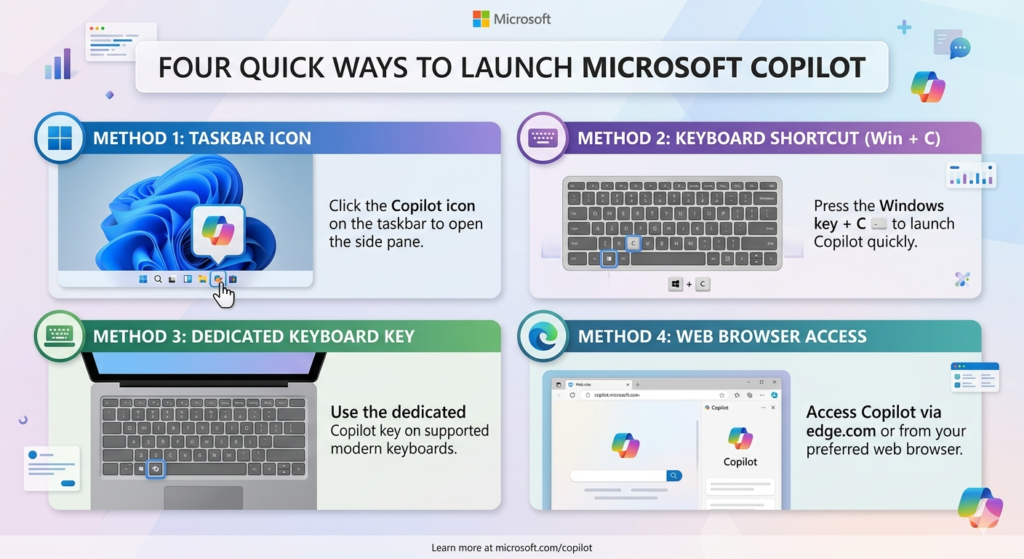
Getting started with Copilot couldn’t be simpler, thanks to multiple access methods designed for convenience:
Web Browser Method: Simply navigate to copilot.microsoft.com using any internet browser to access the full web-based platform.
Taskbar Shortcut: Find the Copilot symbol on your Windows taskbar and select it for immediate launch.
Keyboard Command: Press Windows Key + C simultaneously to activate Copilot from any location within Windows.
Physical Key Option: Latest keyboard models feature a dedicated Copilot button for instant one-touch activation.
Once opened, you’ll see an input field at the bottom where you can type questions, requests, or instructions. Alternatively, click the microphone icon to use voice commands, making interaction more natural and convenient.
Essential Features and Functionality
Intelligent Conversation Memory
One of Copilot’s most impressive capabilities involves maintaining conversational context. Ask related follow-up questions, refine your requests, and Copilot remembers your entire discussion history, creating smooth, natural dialogue flow.
Creating Visual Content
Copilot goes beyond text responses by generating custom images based on your descriptions. Type a request like “Generate an image of a bakery storefront on an urban street” and watch as Copilot produces several visual options. While occasional adjustments might be needed, the AI’s visualization capabilities are quite impressive.
Expanding Functionality with Plugins
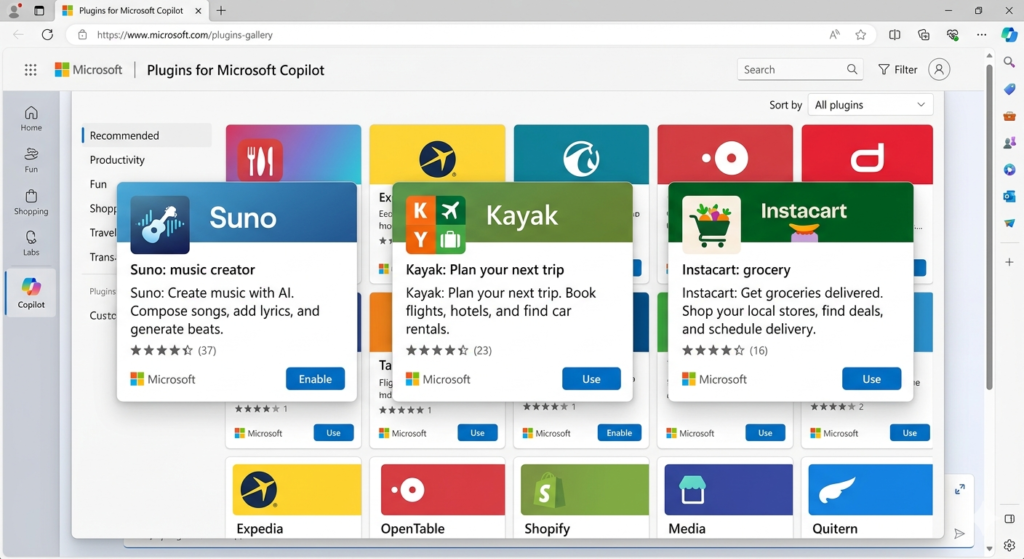
Copilot’s capabilities grow significantly through plugin integration. Access these via the web version by clicking “Plugins” to enable specialized features:
- Instacart for culinary recipes and grocery shopping help
- Kayak for vacation planning and airline ticket searches
- Suno for creating original AI-generated music and songs
The Suno plugin stands out as particularly impressive—ask Copilot to compose a jingle or song about any topic, and it generates complete original music featuring AI-created vocals and instrumental arrangements.
Using Images as Prompts
Text isn’t your only option. Upload photos directly as prompts. Found an appetizing food photo and want the recipe? Drag and drop the image, then ask “What’s the recipe for this?” Copilot analyzes the visual and provides comprehensive ingredient lists and preparation instructions.
Microsoft Copilot Across Office 365 Applications
Copilot truly shines when embedded within your everyday Microsoft 365 applications. Each program includes contextually-aware AI specifically tailored to particular tasks.
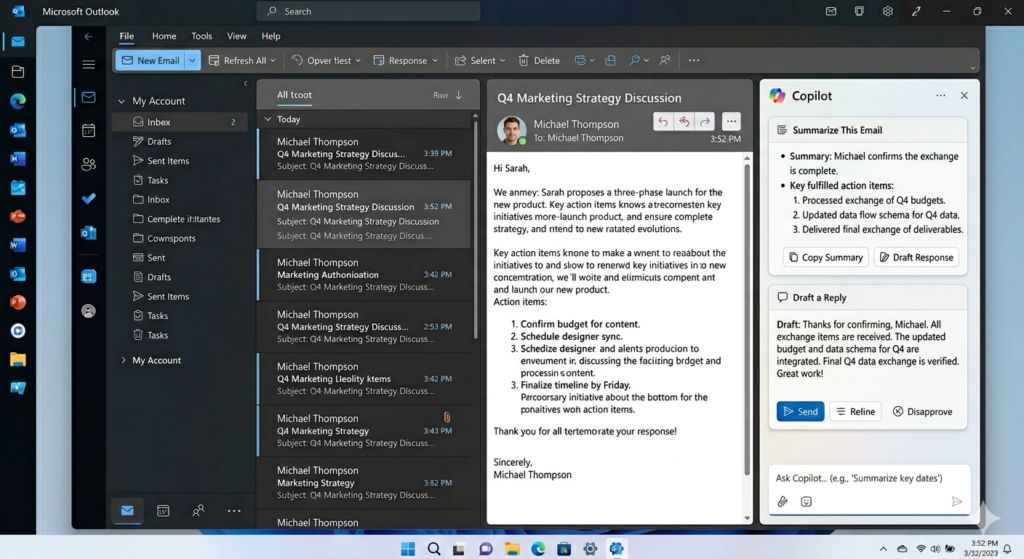
Outlook: Transform Email Management
Message Summarization: Don’t waste time on lengthy email chains anymore. Select “Summary by Copilot” to receive brief, focused overviews of extended message threads.
Identifying Action Items: Query Copilot with “What action items exist in my unread emails today?” and it scans your inbox, pinpointing tasks needing your response.
Automated Response Creation: When replying to messages, type the forward slash (/) key to engage Copilot. Explain your intended message—such as “Tell them I’m currently researching but will provide updates shortly”—and Copilot instantly creates a professional reply. Review, modify, or accept it as written.
PowerPoint: Build Presentations Rapidly
Need to create a presentation quickly? Copilot simplifies this process. Request it to “Build a presentation about [your subject]” and observe as it produces a complete slide show including:
- Organized content distributed across multiple slides
- Appropriate imagery and layout designs
- Polished, professional formatting
Access the Designer tool to enhance individual slides with AI-suggested visual improvements, such as transforming images to full-screen backgrounds or optimizing text positioning.
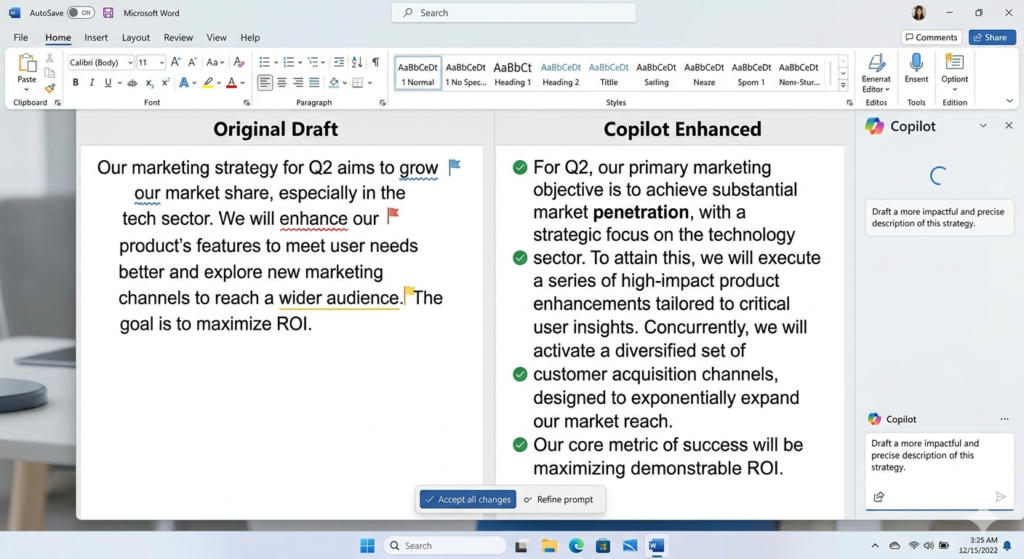
Word: Improve Your Writing Quality
Whether preparing reports, marketing copy, or documentation, Copilot accelerates and enhances your writing:
Content Enhancement: Select any text passage and press Alt+I to engage Copilot. Ask it to professionalize your writing, reduce length, adjust tone, or reorganize information.
Automatic Rewriting: Convert preliminary drafts into refined content. Copilot preserves your fundamental concepts while enhancing clarity, professionalism, and brevity.
Format Conversion: Transform text into tables, bulleted lists, or alternative structured formats using simple commands.
Excel: Master Data Without Complexity
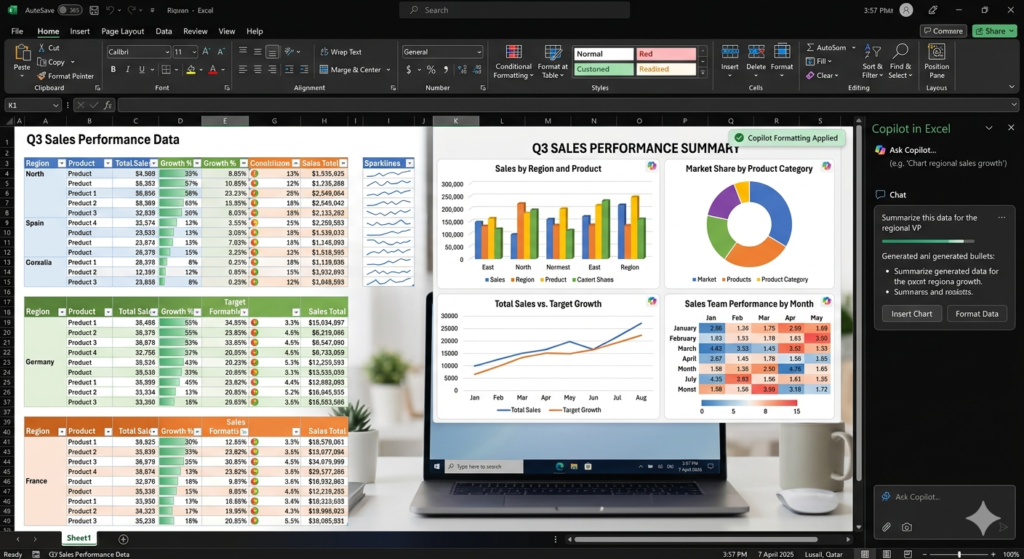
Excel’s sophisticated features no longer need to overwhelm you. Copilot simplifies data work:
Automated Formatting: Rather than navigating complicated conditional formatting menus, simply request Copilot to “Highlight all cells containing [specific term]” and it creates the necessary formula and implements it immediately.
Automatic Chart Creation: Ask “Create a chart displaying [data relationship]” and Copilot generates professional visualizations, automatically positioning them in new worksheets for straightforward analysis.
Intelligent Data Analysis: Ask questions about your information using everyday language, and Copilot helps you recognize trends, patterns, and important metrics without requiring complex formula expertise.
Smart Contextual Understanding
Copilot’s genuine power lies in its situational awareness. Within PowerPoint, it emphasizes narrative flow and visual presentation. In Excel, it concentrates on data interpretation and graphical representation. In Word, it focuses on composition and refinement. In Outlook, it comprehends correspondence and task identification. Each application’s Copilot receives specialized tuning for its particular function, guaranteeing pertinent, high-caliber support.
Availability: Free and Premium Options
Free Version Includes:
- Text-based AI conversations
- Image creation capabilities
- Plugin functionality
- Complete web platform access
Premium Version (Copilot Pro/Microsoft 365) Adds:
- Accelerated image and text generation
- Full integration throughout Microsoft 365 applications
- Advanced features in Word, Excel, PowerPoint, and Outlook
- Priority server access during high-traffic periods
Learning Resources for Expertise Development
Prepared to master Copilot? Microsoft provides outstanding educational materials:
Copilot Lab: Explore Microsoft’s Copilot Lab for thorough tutorials, practical applications, and interactive examples allowing you to investigate Copilot’s features independently.
Complimentary Live Training: Microsoft delivers free, hour-long interactive training sessions designed for particular professional roles:
- Human Resources specialists
- Financial analysts and accountants
- C-suite executives and leadership
- Operations managers
- Sales representatives
- Information technology staff
- Marketing professionals
These engaging sessions showcase Copilot performing role-specific duties and enable direct interaction with instructors through live Q&A. Sessions occur regularly, ensuring you’ll find timing that accommodates your calendar and professional needs.
Final Thoughts: Elevate Your Productivity
Microsoft Copilot signifies a transformative change in our approach to work efficiency. This isn’t about substituting human innovation or knowledge—it’s about enhancing your abilities, automating mundane activities, and allowing you to concentrate on strategic work requiring human judgment and creativity.
From composing email responses within moments to building complete presentations, interpreting sophisticated data without complex formulas, or even producing original music, Copilot’s adaptability proves extraordinary. Productivity success isn’t merely about increased effort; it’s about leveraging appropriate technologies intelligently.
Begin your Microsoft Copilot journey today, and experience how AI partnership can revolutionize your daily professional activities. Whether utilizing the complimentary version or upgrading to comprehensive Microsoft 365 integration, you’re committing to a more streamlined, innovative, and productive tomorrow.

Leave a Reply